CharacterController
Introduction
The Character Controller allows precise and stable movement without being affected by unpredictable physics like bouncing or tipping over. It is ideal for player characters, as it handles collisions, slopes, and steps automatically while remaining fully script-controlled.
Here are some typical configurations using a CharacterController:
Indication
slopeLimit: control the maximum slope the character can walk on
stepOffset: to handle stairs
skinWidth: character’s collision skin width
From the Character Controller script reference lists two functions to move the character:
Move: gives full control over the movement and requires you to apply gravity manually
SimpleMove: simplified version that automatically applies gravity and uses speed instead of distance
A collision constrains the Move/SimpleMove from taking place It is recommended that you make only one call to Move or SimpleMove per frame
In the Unity documentation of the Character Controller we can find useful information:
The traditional Doom-style first-person controls are not physically realistic. The character runs 90 miles per hour, comes to a halt immediately and turns on a dime. Because it is so unrealistic, using Rigidbodies and physics to create this behavior is impractical and will feel wrong. The solution is the specialized Character Controller. It is simply a capsule-shaped Collider which can be told to move in some direction from a script. The Controller will then carry out the movement but be constrained by collisions. It will slide along walls, walk up stairs (if they are lower than the Step Offset) and walk on slopes within the Slope Limit.
The Skin Width is one of the most critical properties to get right when tuning your Character Controller. If your character gets stuck, it is most likely because your Skin Width is too small. The Skin Width lets objects slightly penetrate the Controller, but it removes jitter and prevents it from getting stuck. It is good practice to keep your Skin Width greater than 0.01 and more than 10% of the Radius.
Scene setup
Floor and walls
Create a blank project
Create a cube and assign it a color
Scale the cube to use it as the ground
Place two large cubes in the scene to create obstacles
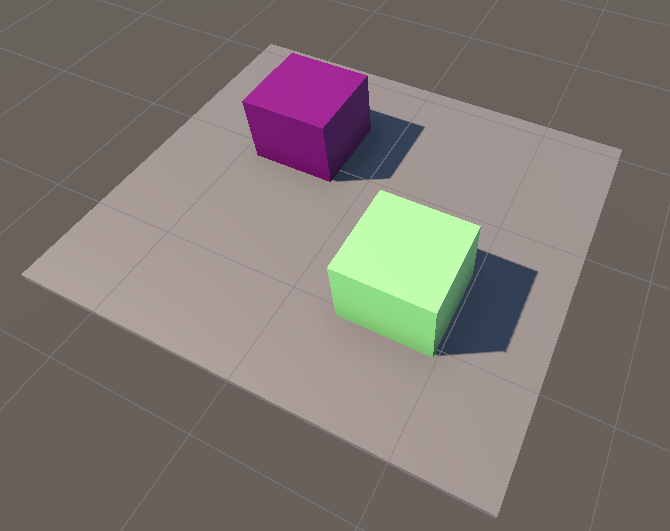
Move and rotate the main camera to get a top-down view
Character
Use a cylinder, spheres and other primitives to create a nice character
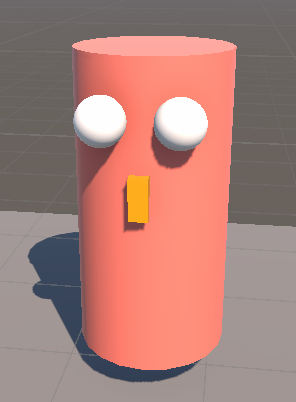
Group all the objects by creating and empty parent in the hierarchy window
Rename the parent node to Character

Select the Character in the hierarchy and add a Character Controller (CC) component to it
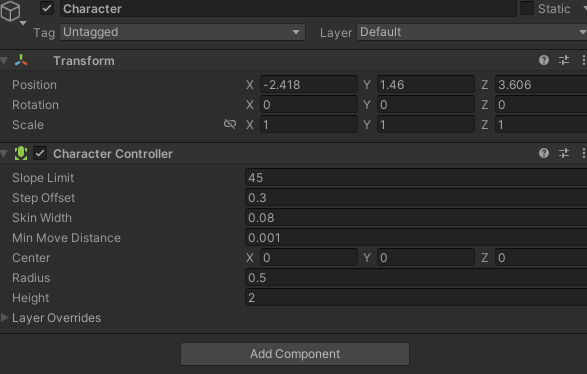
In the editor, change the X, Y, Z, Radius, and Scale values to make the CC fit the whole body

Note
The CC only supports a capsule shape
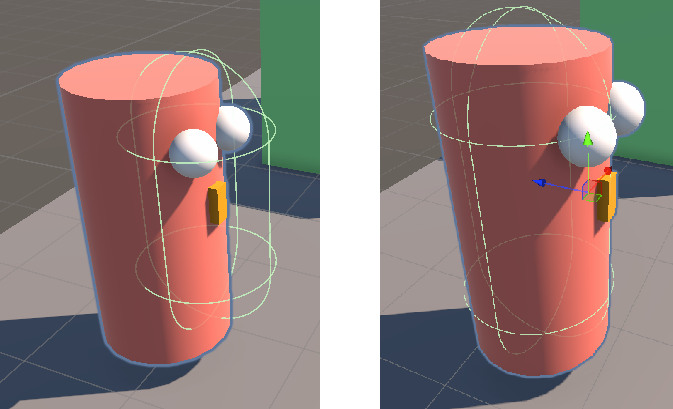
Select each of the 3D objects of the character and REMOVE its collider
Avertissement
Rigidbody are incompatible with the use of a CC
Stairs
Windows > Package manager. Select Unity Registry
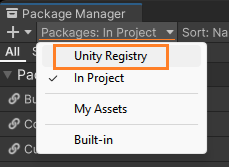
In the search bar, select ProBuilder and install it
Create stairs in the scene
In the Inspector window, change the height of the stairs
Ramps
Using scaled cubes, build ramps along the edge of the world with different slopes
You can choose three slopes : 10° 30° 50°
Final result
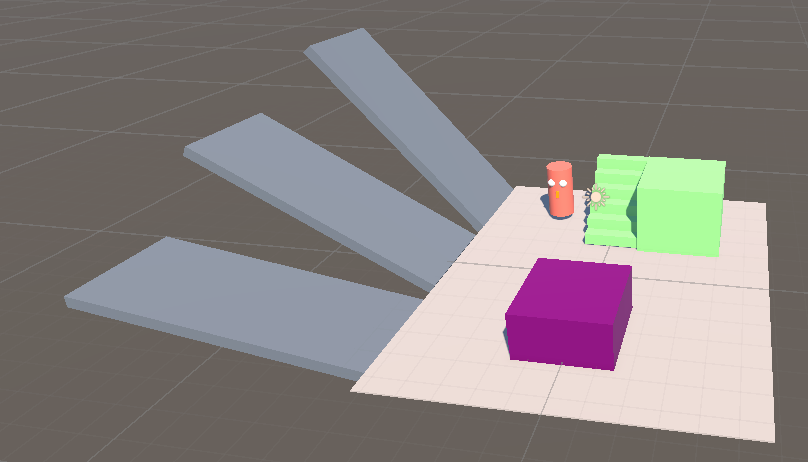
Our scene is now ready:
Script
In your asset folder, create a C# script
Copy paste this code in your script
using UnityEngine;
using UnityEngine.InputSystem;

[RequireComponent(typeof(CharacterController))]
public class CharacterMover : MonoBehaviour
{
    private CharacterController characterController;

    public float speed = 5f;                // Speed of the character
    public float rotationSpeed = 200f;      // Speed of rotation

    void Start()
    {
        characterController = GetComponent<CharacterController>();
    }

    void Update()
    {
        float hInput = Input.GetAxis("Horizontal");
        float vInput = Input.GetAxis("Vertical");

        // Rotate character
        transform.Rotate(Vector3.up, hInput * rotationSpeed * Time.deltaTime);

        // Moves the character forward
        characterController.SimpleMove(transform.forward * vInput * speed);
    }
}
You can now launch the game. If everything is set up correctly, the character should move.
Play
Now launch the demo, test the game, and answer the following questions:
Is the character affected by gravity?
How could you make the character climb the 50° slope?
Make the player able to climb the stairs
First person
In the Hierarchy panel, drag and drop the camera in the Character group
Reset its Transform
Run the game
